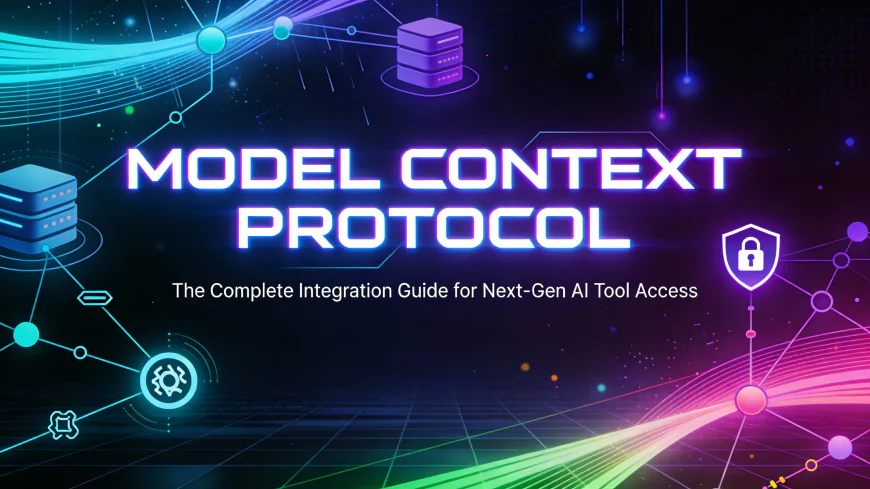
⚡ MODEL CONTEXT PROTOCOL ⚡
The Complete Integration Guide for Next-Gen AI Tool Access
System Status: ACTIVE | Protocol: MCP | AI-Agents: ACTIVE
What is Model Context Protocol?
The Model Context Protocol (MCP) represents a fundamental shift in how AI models interact with external tools and systems. Instead of clunky GUI integrations or custom-built API connectors, MCP provides a standardized, secure, and scalable way to give Large Language Models (LLMs) like Claude and ChatGPT real tool access.
Think of it as the universal API wrapper that AI models have been waiting for. Before MCP, connecting LLMs to external tools was a chaotic mess—no standardization, no security framework, and no elegant abstraction layer.
Key Insight: MCP abstracts away all the complexity. Instead of the LLM handling API calls, authentication, error handling, and rate limiting, the MCP server does all that work. The AI just says "I need X," and MCP delivers.
Why MCP Matters Now
Before MCP, the landscape was fragmented:
- Custom implementations - Every developer built their own integration layer, reinventing the wheel.
- Security nightmares - Secrets leaked through prompts, no standardized auth handling.
- Zero scalability - Adding new tools meant rewriting integration code every time.
- No standards - Different LLM providers handled tool access completely differently.
MCP SOLVES THIS by providing a unified, standardized protocol that works across all platforms.
How MCP Architecture Works
MCP operates on a three-layer model. Understanding this is crucial:
Layer 1: HOST (Application Layer)
The AI application you're using. Examples: Claude Desktop, Cursor IDE, LM Studio, custom applications. The host is the entry point where users interact with AI.
Layer 2: CLIENT (Orchestration Layer)
The MCP client handles communication between the host and MCP servers. It manages message routing, connection lifecycle, and protocol negotiations. Think of it as the nervous system connecting the brain (host) to the body (servers).
Layer 3: SERVER (Execution Layer)
The actual MCP server that exposes tools, resources, and prompts. Servers are where the real work happens—they can interact with databases, APIs, file systems, or any external system. Multiple servers can run simultaneously, each handling different domains.
Data Flow: User Request → Host → Client (routing) → MCP Server → External System → Response → Client → Host → User
The Three Pillars of Every MCP Server
Every MCP server is built on three fundamental components. Master these, and you can build any integration:
Tools (Functions)
Functions that the AI can invoke. Tools are the actions your LLM can perform. Each tool must define:
- Name: Unique identifier (e.g., "query_database")
- Description: Clear explanation of what it does
- Input Schema: JSON schema defining required parameters
- Output Format: What the AI receives back
Example: A tool called "search_databases" with parameters like database_name, query_string, and limit.
Resources (Knowledge)
Information the AI can read and reference. Resources are static or semi-static data that provide context. Examples:
- Database schemas and documentation
- API endpoint references
- Configuration files
- Historical logs or audit trails
Resources allow the AI to understand the system before making decisions.
Prompts (Instructions)
Reusable instruction templates that guide how the AI uses tools. Prompts are orchestration logic. Examples:
- "Analyze security vulnerabilities" - defines the workflow
- "Perform OSINT investigation" - orchestrates multiple tools
- "Generate penetration test report" - chains multiple steps
Prompts ensure consistent, intelligent tool usage patterns.
Prerequisites & Setup
Before diving into MCP integration, you need the essential tools:
Required Dependencies
Docker Desktop (or Docker CLI)
MCP relies on containerization for security and isolation. Get it here: https://docker.com/products/docker-desktop
Available for Mac, Windows, and Linux. Installation is straightforward—just follow the defaults.
Python 3.8+ or Node.js 16+
MCP servers are typically built in Python or JavaScript/TypeScript. Choose what you're comfortable with.
We recommend Python for simplicity, especially if you're building security-focused tools.
MCP SDK or Framework
Anthropic provides official SDKs. Install with: pip install mcp (Python)
Or for Node: npm install @anthropic-ai/sdk
Claude Desktop or Compatible Host
You need a host application that supports MCP. Claude Desktop is the most mature. Download: https://claude.ai/download
Alternatives: Cursor IDE, LM Studio, or custom applications.
Step-by-Step Docker Installation & MCP Setup
Step 1: Download & Install Docker
- Visit https://docker.com/products/docker-desktop
- Select your OS (Mac, Windows, or Linux)
- Run the installer and follow the setup wizard
- Restart your computer
- Verify installation: Open terminal and run docker --version
Expected output: Docker version 29.x.x
Step 1.1: Configuring Docker
- Open the Docker Desktop Application.
- Go to Settings → General → Ensure "Use the WSL 2 Based engine" is checked.
- Then Go to Settings → Beta Features → Toggle "Enable Docker MCP Toolkit".
- Hit Apply and Restart.
Step 2: Install MCP CLI Tools
Run the following in your terminal:
# For Python projects
pip install mcp
pip install mcp[dev] # Includes dev tools
# For Node.js projects
npm install -g @anthropic-ai/mcp
This installs the MCP SDK and CLI tools for creating/managing servers.
Step 3: Configure Claude Desktop for MCP
- Open Claude Desktop
- Go to Settings → Extensions → Advanced Settings → Model Context Protocol
- Toggle Enable MCP to ON
- Add a new MCP server configuration
- Restart Claude Desktop
Tip: Configuration is stored at ~/.config/Claude/claude_desktop_config.json
Step 4: Verify MCP Connection
Run these verification commands:
# Check if Docker is running
docker ps
# List all MCP servers
docker ps | grep mcp
# Check Claude logs
tail -f ~/.config/Claude/logs/debug.log
If you see active containers or MCP processes, you're ready to go!
Building a Custom MCP Server
Docker's catalog of pre-built MCP servers won't cover every tool you use. This is where custom servers shine. You might need:
- Internal tools - Proprietary systems only your org has access to
- Custom APIs - Your own services that need AI integration
- Legacy systems - Connecting to outdated infrastructure
- Security tooling - Penetration testing platforms, SIEM integrations
Using an AI to build an MCP Server
"I want to build a weather MCP server that can:
- Get current weather for any city
- Get 5-day forecast
- Convert between Celsius and Fahrenheit
Use the OpenWeather API"
The LLM (ChatGPT or any other) shall provide you 3 files:
1. A docker file
2. A requirements.txt
3. A Server.py
Example: Building a Dice Roller Server
Let's build a simple MCP server that rolls dice. This demonstrates the core concepts you'd apply to any tool:
Create a file: server.py
from mcp.server import Server, tool
import random

server = Server("dice-roller")

@server.tool()
def roll_dice(sides: int = 6, num_rolls: int = 1):
    """Roll one or more dice with specified sides"""
    rolls = [random.randint(1, sides) for _ in range(num_rolls)]
    return {
        "rolls": rolls,
        "total": sum(rolls),
        "average": sum(rolls) / len(rolls)
    }

if __name__ == "__main__":
    server.run()
Create a Dockerfile: Dockerfile
FROM python:3.10-slim
WORKDIR /app
RUN pip install mcp
COPY server.py .
CMD ["python", "server.py"]
Build and register:
# Build the Docker image
docker build -t my-dice-roller .

# Add to Claude config
# Edit ~/.config/Claude/claude_desktop_config.json
# Add your server entry and restart Claude
That's it! You now have a working MCP server. The same pattern scales to database queries, API calls, security tools—anything you need.
MCP Gateway: Centralizing Multiple Servers
As your MCP ecosystem grows, you'll have multiple servers running simultaneously. The MCP Gateway is the solution.
What is MCP Gateway?
A centralized proxy that combines multiple MCP servers into ONE connection point. Instead of Claude knowing about 10 different servers, it talks to the gateway, which routes requests accordingly.
Benefits:
Unified Interface
Single configuration, multiple tools
Dynamic Routing
Gateway intelligently routes AI requests to the right server
Load Balancing
Distributes traffic across multiple server instances
Centralized Logging
All server interactions logged in one place for auditing
Use Case: Enterprise teams often deploy a gateway on a secure server, then share it with multiple Claude instances across the organization. Perfect for regulated environments like healthcare or financial services.
CRITICAL: Security First
Essential Security Guidelines for MCP
MCP connects AI models to critical systems. Security is non-negotiable.
1 Store Secrets Securely (NEVER in Code)
API keys, database credentials, and tokens should NEVER be hardcoded. Use environment variables or secret managers:
- Environment Variables: os.environ.get('API_KEY')
- Docker Secrets: For containerized deployments
- Secret Managers: HashiCorp Vault, AWS Secrets Manager, Azure Key Vault
WRONG: api_key = "sk-12345..."
RIGHT: api_key = os.environ.get('API_KEY')
2 Implement Tool-Level Access Control
Not every AI request should have access to every tool. Implement role-based permissions:
Example Permission Model:
{
  "admin": ["query_database", "delete_records", "export_data"],
  "analyst": ["query_database", "export_data"],
  "viewer": ["query_database"]
}
This prevents a compromised or malicious AI instance from causing damage.
3 Enable Comprehensive Audit Logging
Log everything: tool invocations, arguments, responses, errors, and who (which AI model) called what. Store logs securely and immutably.
[2025-12-12 10:15:42] MODEL: Claude | TOOL: query_database | STATUS: SUCCESS | ARGS: {table: "users"} | RESULT_SIZE: 42 rows
4 Input Validation & Sanitization
Always validate and sanitize AI-generated inputs before using them in queries or commands. Prevent prompt injection and SQL injection:
Example: Parameterized Queries
#  VULNERABLE: SQL Injection Risk
query = f"SELECT * FROM users WHERE id = {user_id}"

#  SAFE: Parameterized Query
query = "SELECT * FROM users WHERE id = %s"
cursor.execute(query, (user_id,))
5 Rate Limiting & Throttling
Prevent abuse by implementing rate limits on tool invocations. Protect against DoS attacks and resource exhaustion:
• Max 100 database queries per minute per model
• Max 10MB data export per request
• Timeout on long-running operations (default: 30 seconds)
Common Issues & Solutions
1 Issue: "MCP Server Not Responding"
Cause: Docker Desktop not updated or MCP not properly initialized.
Solution:
1. Update Docker Desktop (2024+)
2. Go to Settings → Beta Features → Enable MCP Toolkit
3. Restart Docker and Claude
2 Issue: "Claude Can't Find My MCP Server"
Cause: Configuration not properly loaded or server not running.
Solution:
1. Restart Claude completely
2. Check config: ~/.config/Claude/claude_desktop_config.json exists
3. Verify server running: docker ps | grep mcp
4. Check logs: tail -f ~/.config/Claude/logs/debug.log
3 Issue: "Timeout on Tool Invocation"
Cause: Tool execution taking too long, network delays, or database performance issues.
Solution:
1. Increase timeout values in server config: timeout=30
2. Implement caching to speed up repeated queries
3. Optimize database queries with proper indexes
4. Add timeout handling and retry logic in your tools
Advanced Use Cases
1 AI-Assisted Penetration Testing
For security professionals, MCP unlocks powerful possibilities. Connect Claude to your pentest toolkit:
- Burp Suite Integration: AI analyzes scan results, identifies complex vulnerabilities
- Metasploit Automation: Claude can suggest exploits based on vulnerability scan data
- OSINT Orchestration: Automate reconnaissance across multiple platforms
- Report Generation: AI writes findings and recommendations from raw data
2 Automation Workflows (n8n, Zapier Integration)
MCP integrates seamlessly with automation platforms:
- n8n Workflows: MCP servers act as custom nodes in automation workflows
- Zapier Actions: Connect MCP tools to Zapier for no-code automation
- AI-Driven Decisions: Claude makes intelligent decisions in automated processes
- Real-time Monitoring: Stream alerts and data to Claude for analysis
3 Multi-Client Gateway Architecture
Deploy MCP Gateway on a secure server to serve an entire organization:
- Enterprise Scale: One gateway, hundreds of client connections
- Unified Policy: Implement org-wide security policies in one place
- Centralized Audit: All tool usage logged for compliance and investigation
- Shared Infrastructure: Multiple LLM clients (Claude, LM Studio, Cursor) share the same gateway
The Future is Tool-Enabled AI
MCP is transforming how AI interacts with the world. We're moving from isolated AI chatbots to intelligent systems integrated with real infrastructure.
Whether you're a developer, security professional, automation enthusiast, or enterprise team—MCP provides the foundation for building tool-enabled AI systems.
Your Action Plan
- Install Docker Desktop if you haven't already
- Set up Claude Desktop and enable MCP in settings
- Start with pre-built servers from Docker MCP catalog
- Build your first custom server (even if it's just a simple utility)
- Implement security best practices from the start
- Scale to production with MCP Gateway and proper infrastructure
Now, it's your turn. Build your first agent now.
Last Updated: December 2025
Author: Flatline
Built for developers, security professionals, and AI enthusiasts.
Spread knowledge. Build securely. Innovate fearlessly.